Spots
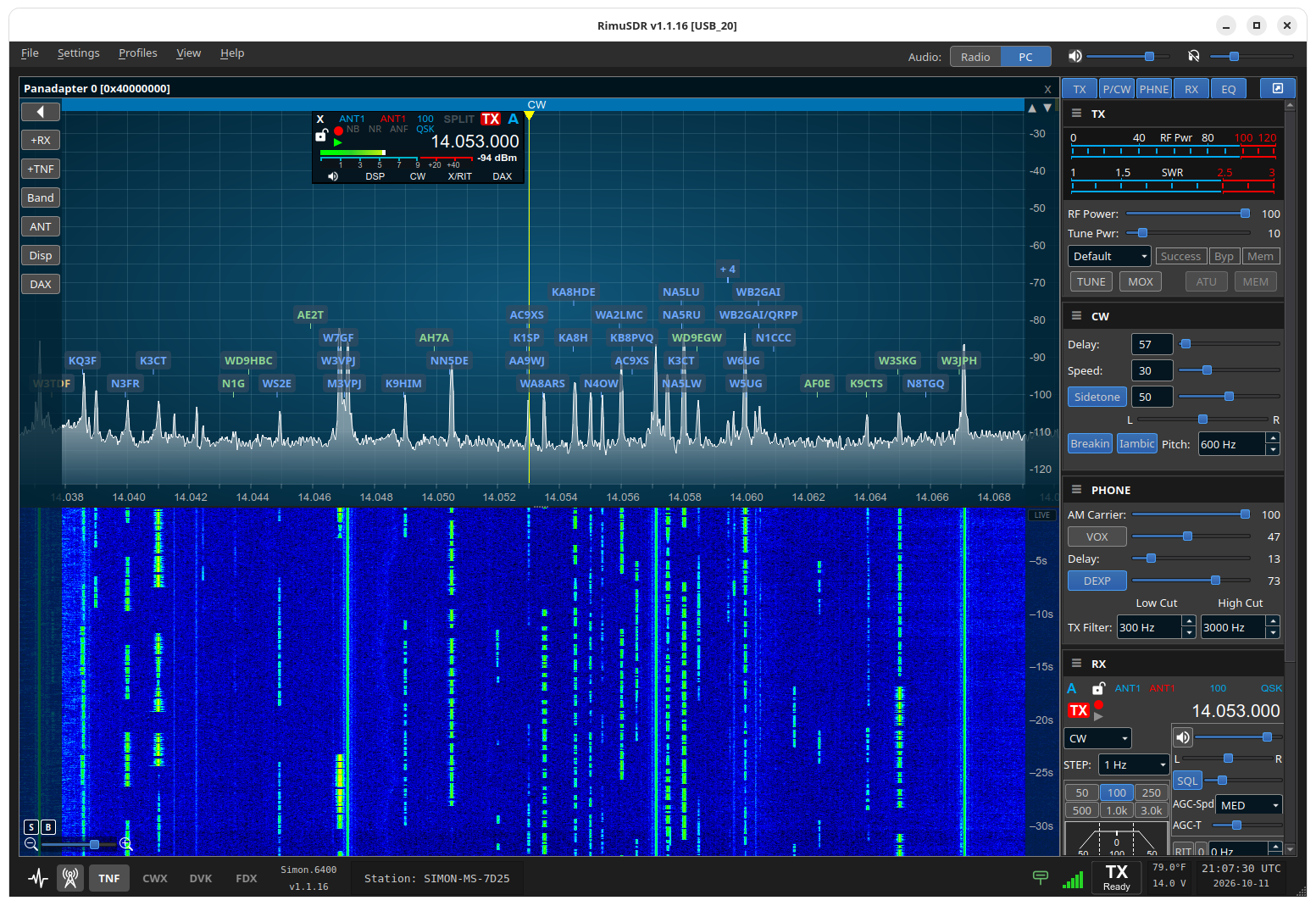
RimuSDR can collect spots itself and put them on your panadapter, with no other program running. It has four sources:
| Source | What it gives you | How it connects |
|---|---|---|
| DX Cluster | Human and skimmer spots from a DX cluster node | Telnet, default dxspots.com:7300 (backup dxc.k0xm.net:7300) |
| RBN | Reverse Beacon Network skimmer spots (CW and digital) | Telnet, default telnet.reversebeacon.net:7000 |
| WSJT-X | Decodes from WSJT-X or JTDX on this computer or your LAN | UDP, default 224.0.0.1:2237 |
| POTA | Parks on the Air activator spots | HTTPS, the public feed at api.pota.app |
All four sources are off until you turn them on.
RimuSDR adds the spots to the radio. Spots on the radio are shared, so every client connected to the radio shows them too.
There are two windows, both in the Settings menu:
- Spot Manager
- Settings › Spot Manager... opens the spot table. Use it to browse the spots, tune to a spot, and set the spot filters.
- Spots Settings
- Settings › Spots Settings... turns the sources on and off, shows their status, and sets how spots look on the panadapter.
There is also a Spots icon on the status bar at the bottom of the main window.
Quick start
- Connect RimuSDR to your radio.
- Select Settings › Spots Settings....
- Select the DX Cluster tab.
- Select Enable the DX cluster.
- Select Apply.
- Select the Status tab.
- Make sure that the State of DX Cluster changes to Connected.
- Wait for the Received count to increase.
- Select Settings › Spot Manager... to open the spot table.
Spots that pass the filters show on the panadapter, in the color of their source.
The DX cluster needs a callsign
The DX cluster logs in with the callsign that is set in your radio. If the radio has no callsign, the source shows Error: no callsign. To use a different callsign, type it in Login callsign on the DX Cluster tab.
You can set up the sources before you connect to a radio. Until a radio is connected, a source that is on shows No radio. The sources start when a radio is connected.
The Spots status icon
The Spots icon on the status bar shows the state of all the sources together:
| Icon | Meaning |
|---|---|
| Gray | Off. All sources are off, or no radio is connected. |
| Amber, dashed | A source is connecting, or is connected but has had no spots for a while. |
| Green | Receiving. At least one source has sent a spot recently. |
| Red, with "!" | A source has an error. |
If one source has an error, the icon shows the error, even when the other sources are receiving.
"Recently" is the source's No-data watchdog time for the DX cluster and the RBN (5 minutes by default), 5 minutes for WSJT-X, and 15 minutes for POTA (or three checks of the feed, if that is longer).
Hold the mouse pointer on the icon to see a summary, one line for each source that is on, and the number of your spots on the radio (for example "Our spots on the radio: 87 of 200").
Click the icon to open Spots Settings at the Status tab.
Limits and safety rules
RimuSDR protects the radio and the cluster networks with these rules:
- 200 spots on the radio
- RimuSDR puts a maximum of 200 of its own spots on the radio at one time. At the limit, it removes the spot it sent or refreshed longest ago to make room for a new one. It removes only its own spots, never spots that other programs added.
- Rate limit
- RimuSDR sends a maximum of 10 spots each second to the radio, with short bursts of up to 50. A spot that waits shows as queued in the Spot Manager footer.
- 2000 stored spots
- The spot table keeps a maximum of 2000 spots. It keeps one row for each station on each band. A new spot of the same station on the same band replaces the earlier row.
- Your own callsign is never sent
- RimuSDR never sends a spot of your own callsign to the radio, also with a prefix or suffix.
- Duplicate spots are not sent
- A spot that is already on the radio, from RimuSDR or from another program, is not sent again. Neither is a spot of the same station within 1 kHz that RimuSDR sent within the Deduplication window.
- Turning a source off
- When you turn a source off and select Apply, RimuSDR removes that source's spots from the radio and from the spot table.
- Disconnect
- When you disconnect with File › Disconnect, RimuSDR removes its spots from the radio first. If the connection is lost unexpectedly, RimuSDR cannot remove them. They stay on the radio until their lifetime runs out.