Display Settings
Display Settings holds the options that change how RimuSDR looks and behaves, along with the sub-band privilege display and the logging controls.
Go to Settings › Display Settings. The dialog has four tabs.
Click OK to apply your changes, or Cancel to discard them. Most settings take effect at once. The ones that need a restart say so beneath themselves.
General
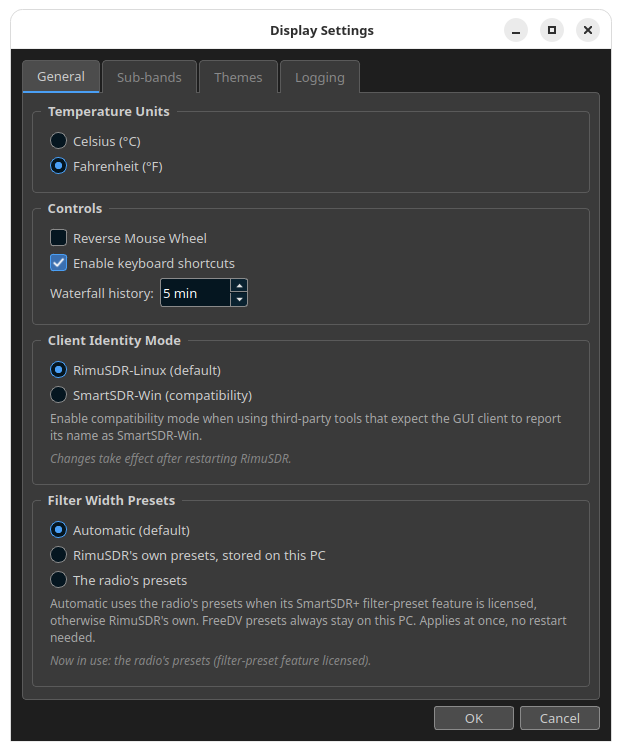
Temperature Units
Choose Celsius (°C) or Fahrenheit (°F) for the radio's temperature readings.
Controls
- Reverse Mouse Wheel
- Reverses the direction the mouse wheel tunes.
- Enable keyboard shortcuts
- Turns the keyboard shortcuts on and off.
- Waterfall history
- How much signal history the waterfall keeps, in minutes.
Client Identity Mode
This controls the name RimuSDR reports to the radio and to other software.
- RimuSDR-Linux (default)
- The normal setting. Leave it here unless something needs otherwise.
- SmartSDR-Win (compatibility)
- Reports the client as SmartSDR-Win. Use it with third-party tools that expect the GUI client to carry that name.
Changes take effect after you restart RimuSDR.
Filter Width Presets
This decides which set of receive filter presets RimuSDR uses.
- Automatic (default)
- Uses the radio's presets when its SmartSDR+ filter-preset feature is licensed, and RimuSDR's own presets otherwise.
- RimuSDR's own presets, stored on this PC
- Always uses the presets held on this computer.
- The radio's presets
- Always uses the presets stored in the radio.
FreeDV presets always stay on this PC, whichever option you choose. A change applies at once, with no restart.
The line below the options tells you which set is in use now, and why.
Sub-bands
The sub-band privilege bar draws license class segments across the top of the panadapter. This tab controls it.
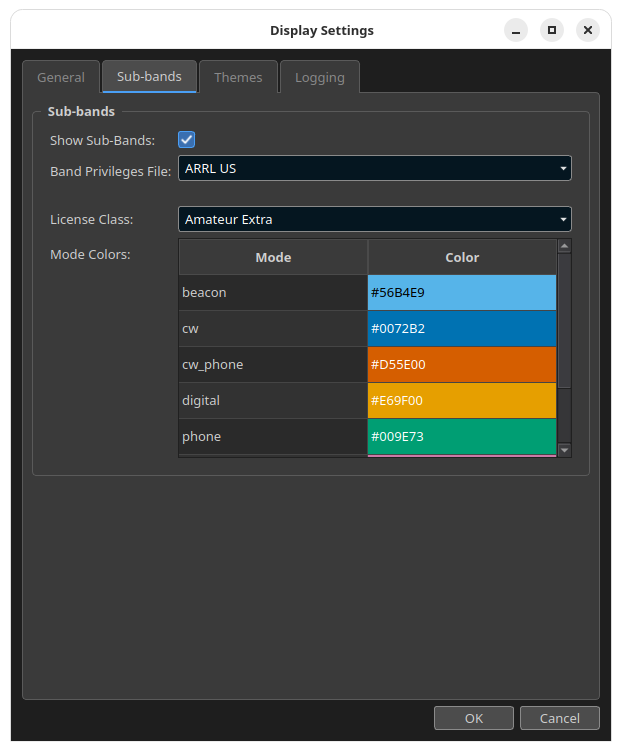
- Show Sub-Bands
- Turns the privilege bar on and off. It cannot be enabled while License Class is set to None, because the privileges depend on the class.
- Band Privileges File
- The band plan in use. RimuSDR ships with the ARRL US plan and IARU Regions 1, 2 and 3. Choose Custom... to load a file of your own.
- License Class
- Your license class, taken from the selected file. The list is filled in from the file, so if your own class names appear here, the file loaded correctly.
- Mode Colors
- Every mode the selected class uses, with the color it is drawn in. This is read from the band plan file, and is the quickest way to confirm your colors came through as intended.
To write a band plan for your own country, see Band plan files. For what the bar shows while you operate, see Sub-band privilege display.
Themes
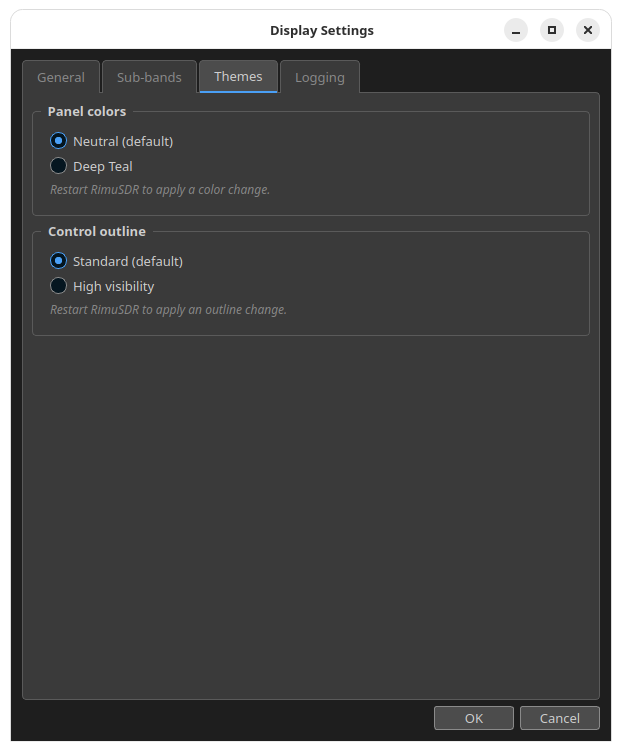
- Panel colors
- Neutral (default) or Deep Teal.
- Control outline
- Standard (default) or High visibility. High visibility draws stronger outlines around controls.
Both settings need a restart before they take effect.
Logging
RimuSDR writes a log file that is useful when reporting a problem.
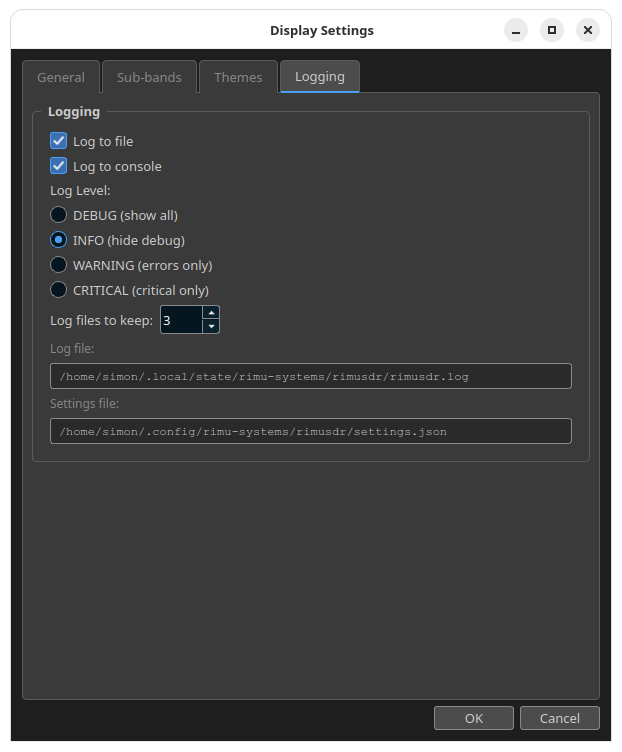
- Log to file
- Writes the log to disk.
- Log to console
- Writes the log to the terminal, if RimuSDR was started from one.
- Log Level
- How much detail is recorded. DEBUG shows everything, INFO hides debug messages, WARNING records errors only, and CRITICAL records only critical failures.
- Log files to keep
- How many previous log files are retained before the oldest is deleted.
The two fields at the bottom are read-only, and show where the files are:
~/.local/state/rimu-systems/rimusdr/rimusdr.log      # log file
~/.config/rimu-systems/rimusdr/settings.json         # settings file
Reporting a problem
Set Log Level to DEBUG, reproduce the problem, then attach the log file when you contact support.