Spots Settings
Go to Settings › Spots Settings.... The window has six tabs: Status, General, DX Cluster, RBN, WSJT-X and POTA. You can open it before you connect to a radio.
For an overview and a quick start, see Spots. The spot filters are in the Spot Manager, not here.
Select Apply to keep your changes
Changes on the General, DX Cluster, RBN, WSJT-X and POTA tabs take effect only when you select Apply. If you select Close without Apply, RimuSDR discards the changes.
Apply is available only when there is a change to apply. It is also not available while the DX Cluster or RBN Host is empty, or the WSJT-X Address is not a valid IP address, also when that source is off.
The Display settings on the General tab show a live preview on the panadapter while you change them. They are also discarded if you select Close without Apply.
Status tab
The top line shows whether a radio is connected, whether passive mode is on, and the number of your spots on the radio, of a maximum of 200.
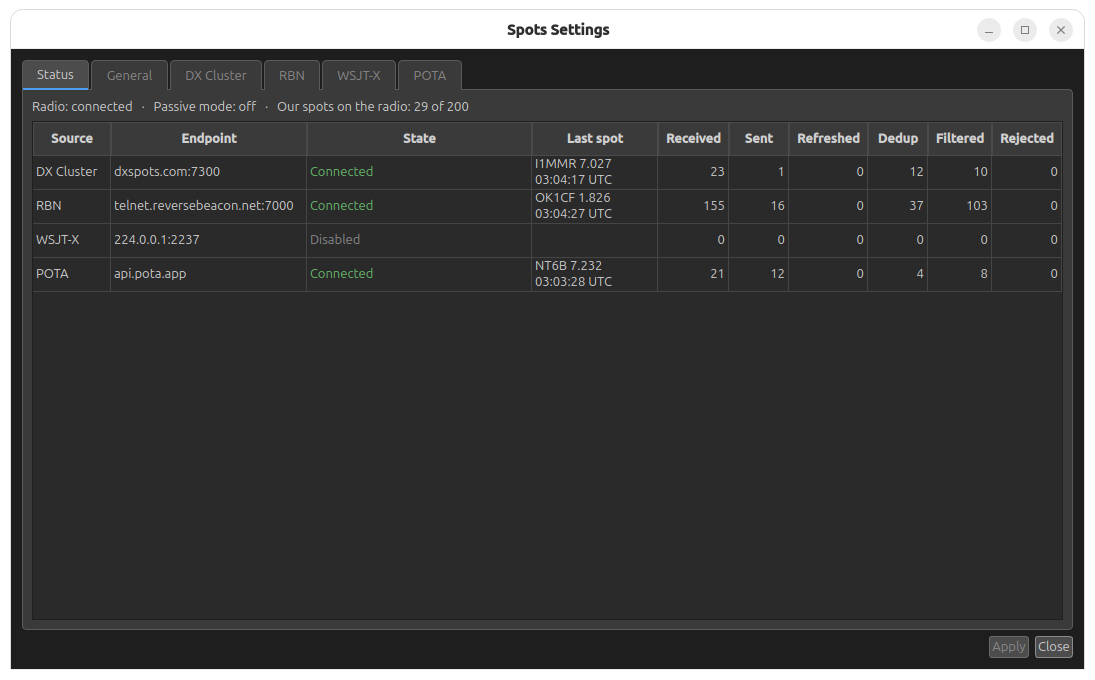
The table has one row for each source:
| Column | Meaning |
|---|---|
| Source | DX Cluster, RBN, WSJT-X or POTA. |
| Endpoint | The server and port in use. |
| State | See below. |
| Last spot | The call, frequency (MHz) and time (UTC) of the last spot from this source. |
| Received | Spots received from the source. |
| Sent | Spots sent to the radio. |
| Refreshed | Repeat spots that restarted the lifetime of one of your spots on the radio. A repeat refreshes a spot only after half of its lifetime has passed. |
| Dedup | Spots not sent because they were sent recently, or because the same spot is already on the radio from any program. |
| Filtered | Spots kept off the radio: by a filter, the Maximum spot age, your own callsign, passive mode, the rate limit, the 200-spot limit, or because no radio is connected. |
| Rejected | Spots that failed validation, for example a bad callsign or frequency. |
Hold the pointer on the Refreshed, Dedup, Filtered or Rejected header to see a short description.
The State column shows:
| State | Color | Meaning |
|---|---|---|
| Disabled | Gray | The source is off. |
| No radio | Gray | The source is on, but no radio is connected. |
| Connecting, Logging in | Amber | The source is starting. |
| Connected, Listening | Green | The source is working. WSJT-X shows Listening. |
| Reconnecting | Amber | The connection was lost. It shows the attempt number and the time of the next attempt (UTC). |
| Error: ... | Red | The source has stopped with an error, for example Error: no callsign. |
Hold the pointer on an error or on Reconnecting to see the last error in full.
General tab
The General tab has the Display settings, the Sending settings and the Prefix data.
Display
These settings control how spots look on the panadapter. They are in four groups: Display, Appearance, Colors and Layout.
| Setting | What it does |
|---|---|
| Show Spots | Shows or hides all spots on the panadapter. |
| Font Size, Font Style | Text size (6 to 24 pt) and Bold Font for the spot labels. |
| Spot Color: Override | Draws every spot in one color that you choose, in place of the color of its source. |
| Background: Override | Gives every spot label the same background. Auto selects a background from the spot color. If Auto is off, choose the background color and its Opacity. |
| Max Levels | The maximum number of rows that labels stack in when spots are close together (1 to 15). |
| Starting Height | The height on the panadapter where spot labels start (0% = bottom, 100% = top). |
Each color control shows only when it has an effect.
These settings were in Settings › Spots... before RimuSDR 1.1.16.
Sending
- Passive mode
- RimuSDR receives and stores spots, and shows them in the Spot Manager, but sends nothing to the radio. Use this when another program already sends spots to this radio. This setting is saved.
- Deduplication window
- 1 to 60 minutes, default 5. A spot of the same station within 1 kHz that arrives again within this time is not sent again.
Prefix data
RimuSDR uses the Big CTY file from country-files.com to find the entity, continent, CQ zone and flag of each call. RimuSDR includes a copy of this file. In use shows the file and its date.
To get the newest file:
- Select Download latest Big CTY.
- Wait for the result message beside the button.
RimuSDR keeps the downloaded file in your own settings folder, and uses it only if it is newer than the included copy. Only new spots use the new file. Spots that are already stored keep their data.
DX Cluster tab
Select Enable the DX cluster to turn this source on. The connection settings are available only when it is on.
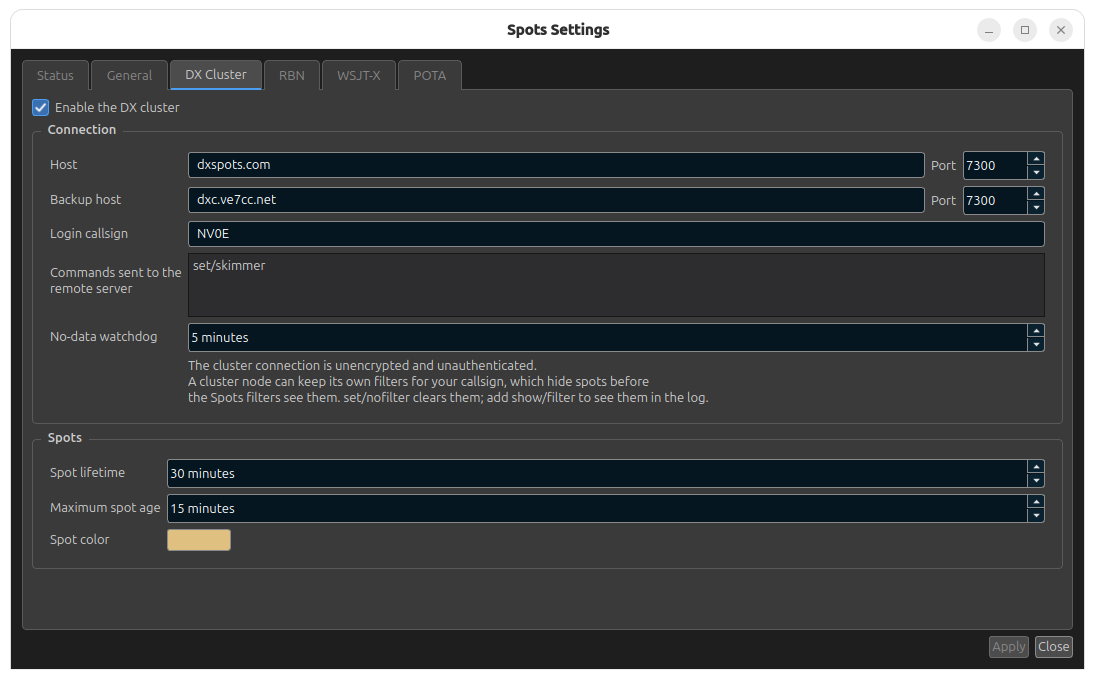
Connection:
| Setting | Default | What it does |
|---|---|---|
| Host, Port | dxspots.com, 7300 |
The cluster node. |
| Backup host, Port | dxc.k0xm.net, 7300 |
When a connection fails, RimuSDR tries the main host and the backup host in turn. Leave it empty for no backup. |
| Login callsign | Empty | Empty means the radio's callsign, shown in gray in the box. Up to 15 characters. |
| Commands sent to the remote server | See below | One command on each line. RimuSDR sends them after each login. |
| No-data watchdog | 5 minutes | If no data arrives for this time (1 to 120 minutes), RimuSDR checks the connection and reconnects if it is dead. |
The default commands are:
set/skimmer- Asks the node for skimmer spots too. Without it, a node can send only a few human spots each hour.
set/nofilter- Clears filters that the node keeps for your callsign. Those node filters
remove spots before RimuSDR sees them. To see the node's filters, add
show/filter. The reply shows in the RimuSDR log. set/noann,set/nowwv- Stops announcements and propagation reports, which are not spots.
Note
If you change the host to a different type of cluster node, these commands may not apply. Change them to suit that node.
The cluster connection is not encrypted and has no password.
Spots:
| Setting | Default | What it does |
|---|---|---|
| Spot lifetime | 30 minutes | How long a spot stays on the radio's panadapter (1 to 1440 minutes). A repeat spot of the same station can start the lifetime again. |
| Maximum spot age | 15 minutes | A spot older than this when it arrives is never stored or sent. This stops old spots, for example the recent spots a cluster replays when you log in. |
| Spot color | Tan | The color of this source's spots on the panadapter and in the Spot Manager. |
RBN tab
Select Enable the Reverse Beacon Network to turn this source on. The RBN tab has the same settings as the DX Cluster tab, with these defaults:
- Host
telnet.reversebeacon.net, port 7000, no backup host. - No commands.
- Spot lifetime 15 minutes.
- Spot color blue.
The RBN sends a very large number of spots
Use the Band and Mode filters in the Spot Manager to limit them.
WSJT-X tab
Select Enable WSJT-X / JTDX decodes to turn this source on. It works with WSJT-X and JTDX.
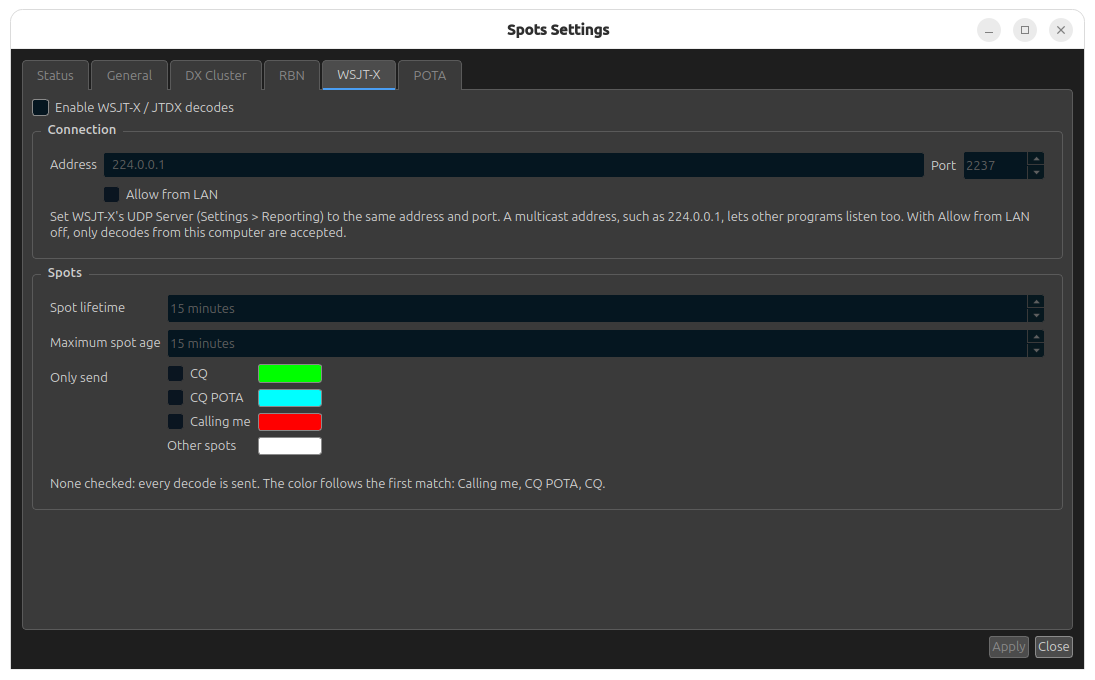
To connect WSJT-X:
- In RimuSDR, keep the default Address
224.0.0.1and Port2237, or type your own. - In WSJT-X, select File › Settings › Reporting.
- In UDP Server, type the same address and port.
- In RimuSDR, select Apply.
- On the Status tab, make sure that the WSJT-X State is Listening.
A multicast address, such as 224.0.0.1, lets other programs, for example a
logger, receive the decodes too.
- Allow from LAN
- If this is off, RimuSDR accepts decodes only from this computer. Turn it on if WSJT-X runs on a different computer.
Spots:
| Setting | Default | What it does |
|---|---|---|
| Spot lifetime | 15 minutes | How long a decode stays on the panadapter. |
| Maximum spot age | 15 minutes | Older decodes are never stored or sent. |
| Only send: CQ | Off, green | Send decodes of stations that call CQ. |
| Only send: CQ POTA | Off, cyan | Send decodes of stations that call CQ POTA. |
| Only send: Calling me | Off, red | Send decodes of stations that call you. |
| Other spots | White | The color of decodes that match none of the three types. |
If none of the Only send boxes is selected, RimuSDR sends every decode. If more than one is selected, RimuSDR sends decodes that match any of them. Each type has its own color button. If a decode matches more than one type, it gets the color of the first match in this order: Calling me, CQ POTA, CQ.
Calling me uses the radio's callsign. If the radio has no callsign, it uses the DX Cluster Login callsign, then the callsign set in WSJT-X.
POTA tab
Select Enable POTA activator spots to turn this source on. You do not need a login.
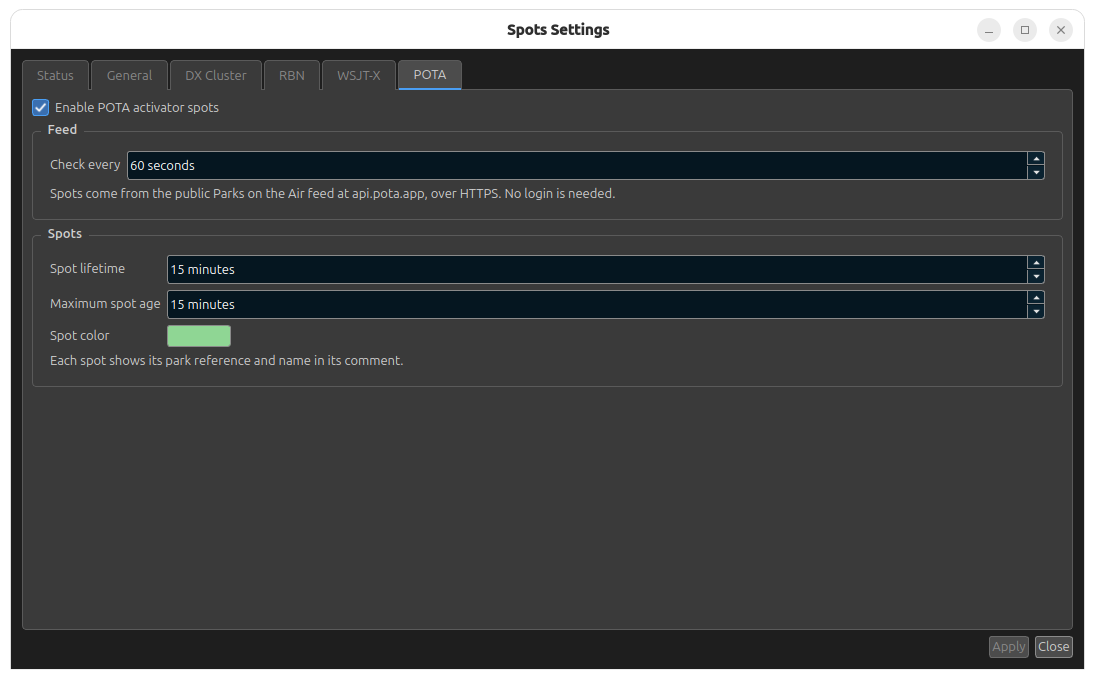
| Setting | Default | What it does |
|---|---|---|
| Check every | 60 seconds | How often RimuSDR gets the POTA spot list (30 to 600 seconds). |
| Spot lifetime | 15 minutes | Used only when the POTA feed does not give an expiry time. |
| Maximum spot age | 15 minutes | Older spots are never stored or sent. |
| Spot color | Green | The color of POTA spots. |
Each POTA spot shows the park reference and park name in its message.