Spot Manager
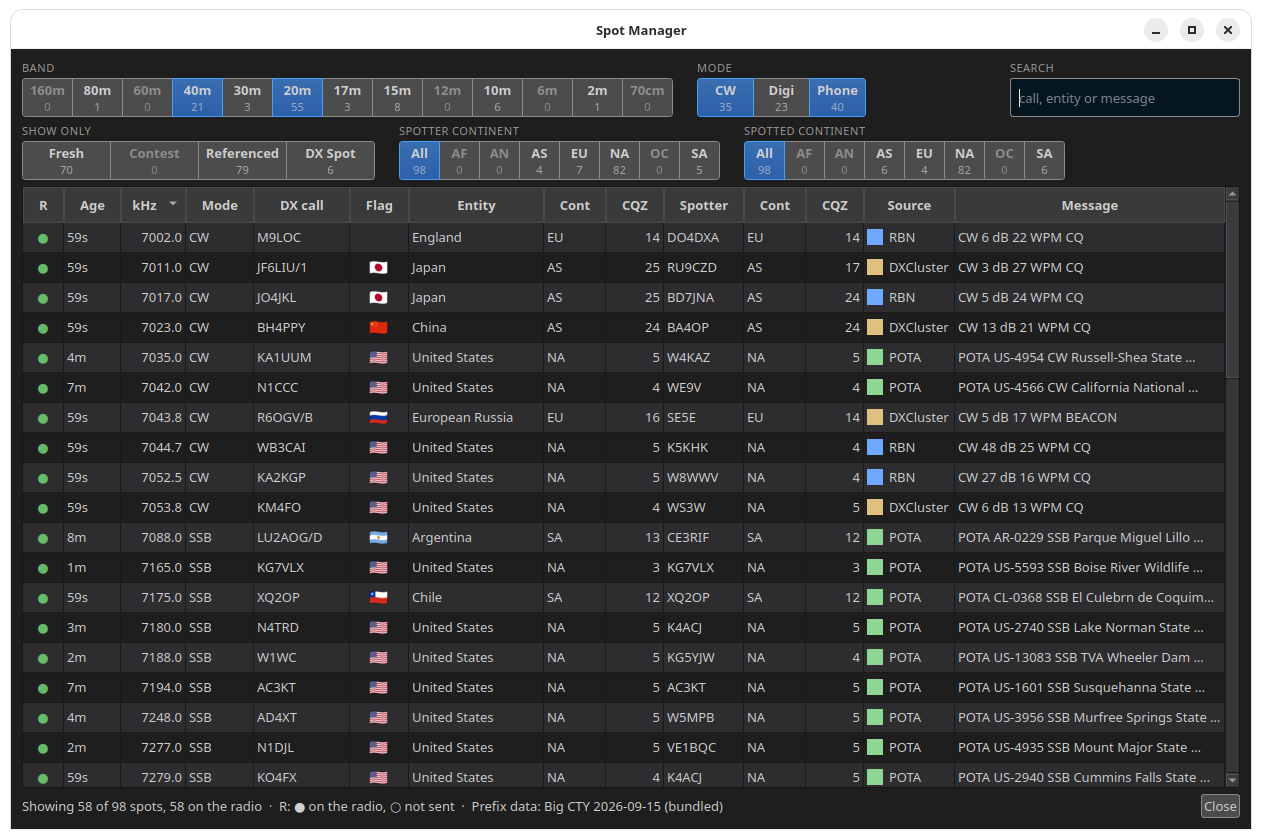
Go to Settings › Spot Manager.... The Spot Manager shows every spot that RimuSDR has collected and that passes the filters. The window can stay open while you use the radio. Close hides it.
For the spot sources, see Spots and Spots Settings.
Filters
The filters at the top of the window are the only place where you set the spot filters. They control two things at the same time:
- Which spots show in the table.
- Which spots RimuSDR sends to the radio, and so which spots show on the panadapter.
A filter change takes effect at once and is saved:
- If you make a filter tighter, RimuSDR removes its spots that no longer pass from the radio.
- If you make a filter looser, RimuSDR sends the stored spots that now pass to the radio.
Each filter button shows its name and, under the name, the number of spots that it matches. A highlighted button is on.
| Group | Buttons | How it works |
|---|---|---|
| Band | 160m, 80m, 60m, 40m, 30m, 20m, 17m, 15m, 12m, 10m, 6m, 2m, 70cm | Only the highlighted bands pass. If no band is highlighted, no spots pass. Spots outside these bands never pass. |
| Mode | CW, Digi, Phone | Only the highlighted mode groups pass. A spot whose mode RimuSDR cannot find always passes. |
| Show only | Fresh, Contest, Referenced, DX Spot | Each one that is on narrows the list. See below. |
| Spotter continent | All, AF, AN, AS, EU, NA, OC, SA | Where the spotter is. All passes every continent. Select one or more continents to show only those. |
| Spotted continent | All, AF, AN, AS, EU, NA, OC, SA | Where the DX station is. Works the same as Spotter continent. |
The Show only buttons:
- Fresh
- Only spots less than 5 minutes old.
- Contest
- Only spots whose message looks like a contest, for example "CQ WW", "ARRL", "SPRINT", or a "599 123" style exchange.
- Referenced
- Only spots whose message has a POTA, SOTA, WWFF or IOTA reference.
- DX Spot
- Only spots where the spotter is on a different continent from the DX station. A spot with an unknown continent is not a DX spot.
RimuSDR finds the mode of a spot in this order: a mode word in the message (FT8, FT4, CW, RTTY, SSB, USB, LSB, FM, PSK), then the FT8 and FT4 dial frequencies, then the band plan.
Search (top right) narrows the table only. It does not change what is sent to the radio. It matches text in the DX call, the entity, the spotter, and the message. Click the x in the box to clear it.
The table columns
| Column | Meaning |
|---|---|
| R | ● the spot is on the radio. ○ the spot is not on the radio. Hold the pointer on ○ to see why, for example "band filter" or "passive mode". |
| Age | Time since the spot was made, in seconds (s), minutes (m) or hours (h). Updates every 15 seconds. |
| kHz | Spot frequency. |
| Mode | The mode RimuSDR found for the spot. |
| DX call | The spotted station. |
| Flag | The flag of the DX entity. Hold the pointer on it to see the country code. |
| Entity | The DXCC entity of the DX call. |
| Cont, CQZ | Continent and CQ zone of the DX station. |
| Spotter | The station or skimmer that made the spot. |
| Cont, CQZ | Continent and CQ zone of the spotter. |
| Source | DXCluster, RBN, WSJT-X or POTA, with a swatch in the source's spot color. |
| Message | The spot comment. For POTA spots, the park reference and name. |
Click a column header to sort by that column. Click it again to reverse the order. The table opens sorted by frequency. Drag a column edge to change its width.
Entity, continent, CQ zone and flag come from the Big CTY prefix file. See Prefix data.
Tuning to a spot
Click a row to tune to that spot. RimuSDR:
- Tunes your active slice to the spot frequency.
- Sets the slice mode to the spot mode. If RimuSDR found no mode for the spot, the slice mode does not change.
- Moves the panadapter to show the slice, also when the spot is on a different band.
If the active slice is locked, nothing changes: not the frequency and not the mode.
The near-slice highlight
The table shows where your active slice is, in violet:
- Spots within 2.5 kHz of the active slice frequency have a violet background. The color is strongest at the slice frequency and lighter toward 2.5 kHz.
- If no spot is within 2.5 kHz, the nearest spot above and the nearest spot below the slice frequency have a light violet background.
The highlight follows the slice while you tune.
The footer
The line at the bottom of the window shows:
- Showing N of M spots - N rows in the table now (after the filters and the search), of M spots stored.
- X on the radio - the number of these spots that are on the radio.
- Y queued - spots that wait to be sent, shown only when there are some. See Limits and safety rules.
- R: ● on the radio, ○ not sent - a key to the R column.
- Prefix data - the Big CTY file in use and its date, for example "Big CTY 2026-09-15 (bundled)".