Radio Setup - Audio Settings
The Audio tab of Radio Setup selects the microphone and speakers RimuSDR uses on this computer, and controls the receive audio stream coming from the radio.
This is PC audio, not DAX
These settings cover the audio you speak into and listen to at the computer. Audio routed to digital-mode software travels a separate path through RimuDAX. See Audio channels.
Go to Settings › Radio Settings and choose the Audio tab.
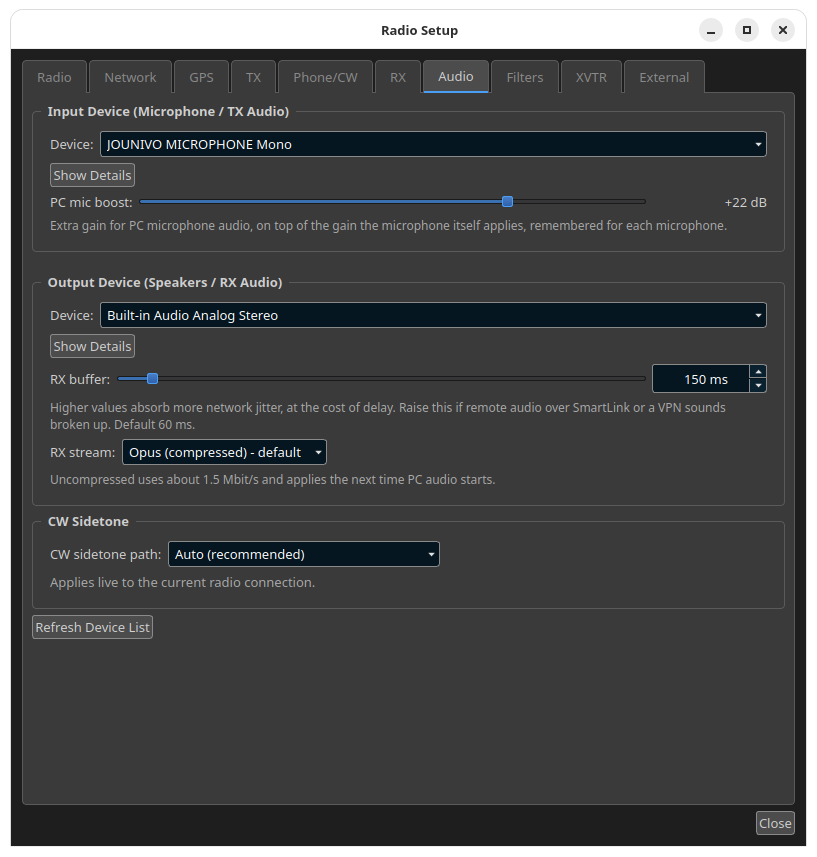
Input device
This is the microphone used for transmit audio.
- Device
- The input device RimuSDR listens to. Show Details reports what the system knows about the selected device.
- PC mic boost
- Extra gain applied to the PC microphone, on top of the gain the microphone itself applies. The setting is remembered for each microphone, so moving between a headset and a desk microphone keeps the right level for each.
Output device
This is where received audio is played.
- Device
- The output device RimuSDR plays through. Show Details reports what the system knows about the selected device.
- RX buffer
-
How much audio is held before playback. Higher values absorb more network jitter, at the cost of delay. The default is 60 ms.
Raise it if remote audio over SmartLink or a VPN sounds broken up.
- RX stream
-
How the radio sends receive audio.
Opus (compressed) is the default and suits any connection. Uncompressed uses about 1.5 Mbit/s, so it is only sensible on a local network. A change here applies the next time PC audio starts.
CW sidetone
CW sidetone path decides how the sidetone reaches your speakers. A change applies live to the current radio connection.
| Setting | What it does |
|---|---|
| Auto (recommended) | RimuSDR chooses for you. Correct for almost every setup. |
| Low latency (always on) | A dedicated sidetone stream, kept open and lightly buffered. The shortest delay between your key and the tone. |
| Standard (always on, relaxed buffering) | A dedicated stream with more buffering. More tolerant of a busy machine, at a little more delay. |
| Mixed into RX audio (no extra stream) | No separate stream. The sidetone travels with the received audio. |
The first three options open a second audio stream alongside the receive audio. Mixed into RX audio uses one stream for both.
If your audio breaks up when you send CW
Some Linux audio configurations do not cope well with two streams from one application. If receive audio stutters or drops while the sidetone is active, set the path to Mixed into RX audio (no extra stream). That leaves RimuSDR with a single stream, which resolves it on machines where the second stream is the cause.
Refresh Device List
Refresh Device List re-reads the audio devices from the system. Use it after plugging in or removing a headset, microphone, or interface, so the new device appears in the two lists without restarting RimuSDR.