Panadapter and waterfall
The panadapter displays the RF spectrum across the selected band. The waterfall below it shows signal history over time, which makes activity easy to identify.
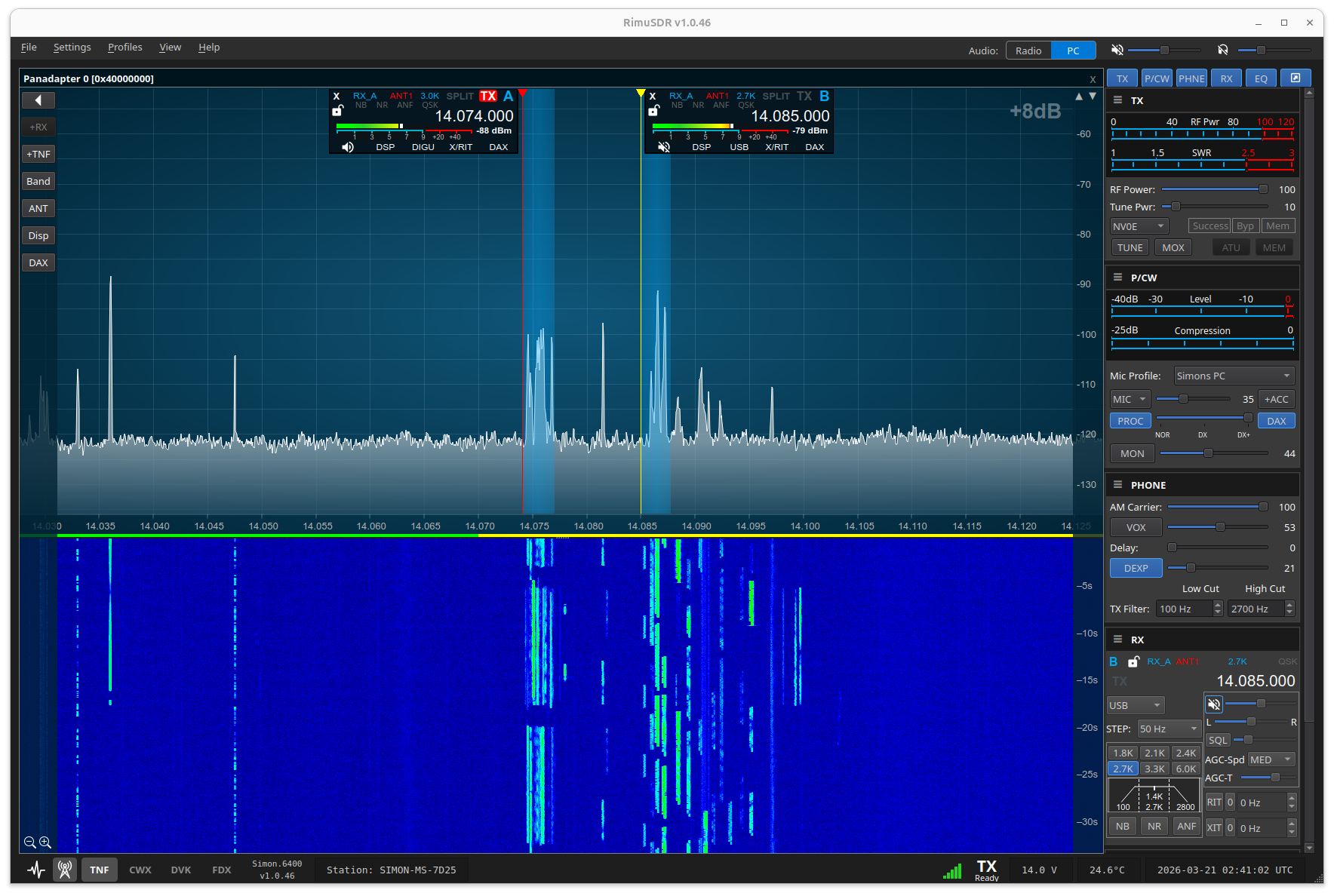
Panadapter display
The panadapter shows real-time signal strength across the visible bandwidth. Use the band selector to change band, or enter a frequency directly to move to a specific spot. Adjust the reference level and display range to suit band conditions.
Waterfall
The waterfall shows RF activity over time, which helps identify CW, digital, and SSB signals at a glance. Adjust the waterfall speed and color gradient to match your operating preferences and screen brightness.
Multiple panadapters
RimuSDR supports up to eight simultaneous panadapters, subject to the radio's capability. Each panadapter is independent and can show a different band.
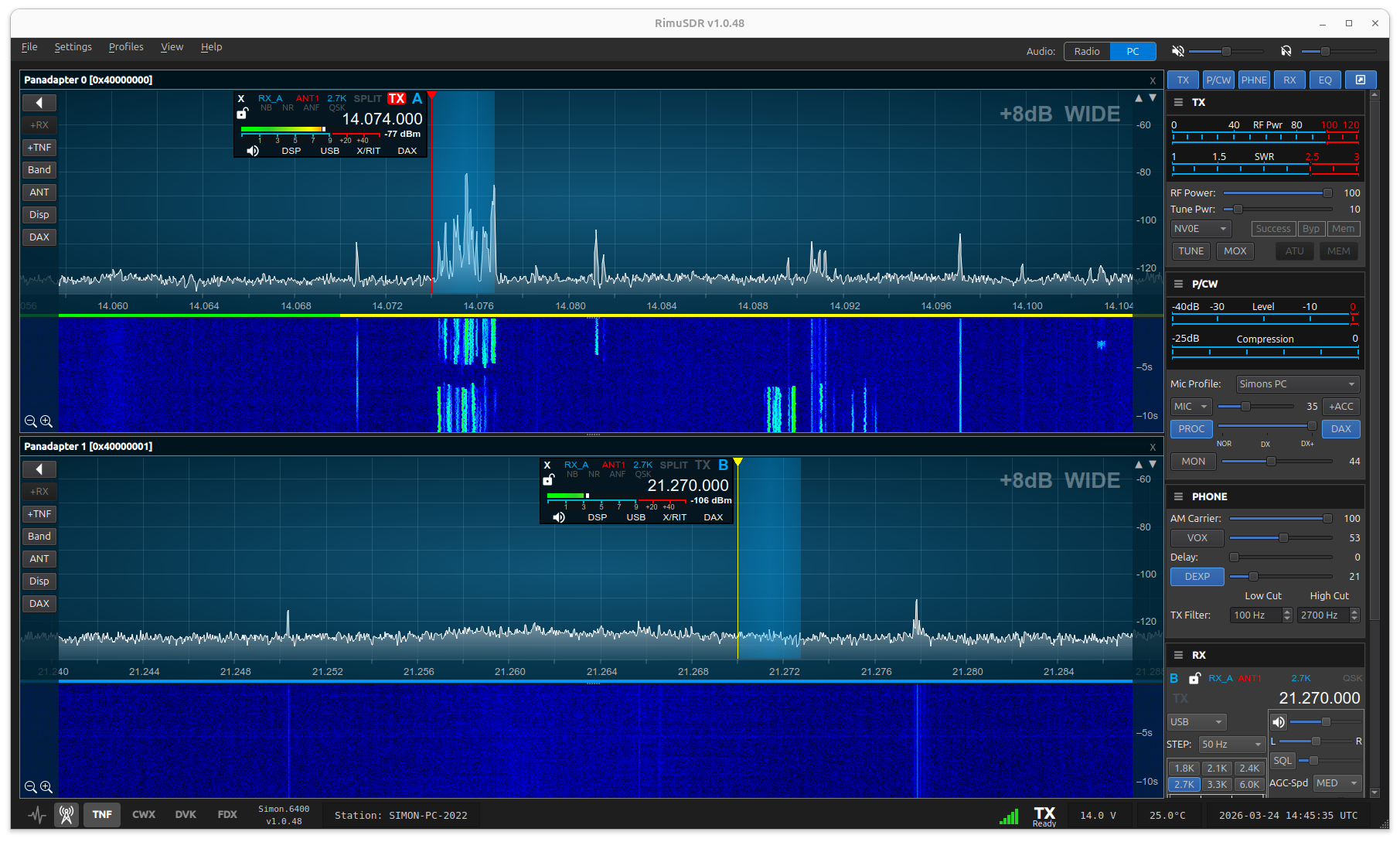
Slice receivers
Each panadapter can host one or more slice receivers. A slice defines:
- The receive frequency
- The mode (USB, LSB, CW, AM, FM, and others)
- The filter width
- The audio routing
To move a slice, click in the panadapter, or type a frequency.
Tracking notch filters
Place a tracking notch filter (TNF) anywhere in the panadapter to attenuate an interfering carrier or signal. Drag the TNF to move it, or adjust its width to fit the interference.
TNFs operate in the digital domain, on the radio itself.
Spots
Spot data can be shown on the panadapter, with the callsign and frequency of spotted stations drawn over the spectrum. Click a spot to move the active slice to that frequency.