Direct IP
Direct IP connects RimuSDR to a radio by its address, instead of waiting for the radio to announce itself.
When you need it
A FlexRadio announces itself with broadcast packets on UDP port 4992. Routers do not forward broadcast packets between subnets, so a radio on a different subnet from your computer never appears in the discovery list, even when the two machines can reach each other perfectly well.
This is the normal situation when you reach a remote site over a VPN. Direct IP is the way around it.
This is not SmartLink
A direct IP connection is a LAN-style connection over a routed path. It does not use the SmartLink relay or FlexRadio's server list. Once connected, the radio behaves exactly like one found by discovery.
SmartLink remains a separate method for remote operation.
Before you start
You need the radio's IPv4 address, and your computer must already be able to reach it. RimuSDR does not configure networking - bring up the VPN, and confirm routing and firewall rules, before you connect.
Connect by IP
-
Open the Connect to Radio dialog.
-
Select By IP address in the list on the left.
-
Enter the radio's IPv4 address in IP address, or select an address you have used before from the list.
-
Enter a Label if you want one.
This is optional. It names the address in the list, for example
Club station. -
Click Connect.
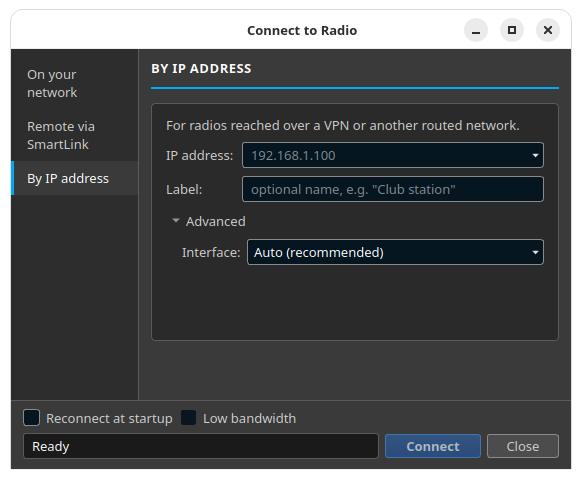
The status line at the bottom of the dialog reports progress. The attempt times out after about 26 seconds.
Recent addresses
A successful connection is remembered, with its label, and appears in the
address list as Label (address). Select it to reconnect without retyping.
Only the address and label are stored. No radio settings are kept.
Advanced: source interface
This is collapsed by default, and most operators never need it.
On a computer with more than one network interface - which is the usual case when a VPN is running - the operating system chooses which interface to send the connection from, and it can choose the wrong one. The radio then never receives the connection, or sees it arriving from an unexpected address.
Auto (recommended) lets the operating system decide, and is correct for almost everyone. If a connection fails on a machine with several interfaces, open Advanced and set Interface to the one on the radio's network.
If the connection fails
RimuSDR cannot tell why a connection attempt failed, so the message it shows is general guidance rather than a specific cause. Check these in order:
-
Confirm the VPN is connected, if the radio is at a remote site.
-
Confirm your computer can reach the radio's address.
-
Confirm the address is correct, and belongs to the radio rather than another device.
-
Confirm no firewall is blocking the connection.
-
If you set Interface under Advanced, put it back to Auto (recommended) and try again.
The same radio can appear twice
If a radio is reachable both on your local network and across the VPN at the same time, it appears once in the discovery list and again as a recent manual address, under two different addresses.
This is deliberate. The two routes are genuinely different, and the entries are kept separate so you can choose which one to use. RimuSDR connects to one radio at a time, so connecting through one route disconnects the other.