SmartLink Manager
SmartLink Manager is where you set a radio up for remote access. It registers and unregisters radios in your FlexRadio SmartLink account, shows the connection settings SmartLink holds for each one, tests whether the ports reach the radio, and edits the port forwarding the radio reports.
It is the counterpart of SmartLink, which is about connecting to a radio that is already registered.
Open it from Settings › SmartLink Manager.... It does not need a radio connection, so you can open it before you connect to anything.
Sign in
The window opens signed out. Only three buttons are shown:
- Login
- Signs in to a SmartLink account. The radio list and the profile panel fill in once the sign-in succeeds.
- Signup
- Creates a new SmartLink account. After the account is created, RimuSDR signs you in with the credentials you just chose, so you do not type them twice.
- Change Pwd
- Sends a password reset email to the address you give. Follow the link in the email to set a new password. This button is only shown while you are signed out.
SmartLink Manager and the Connect to Radio dialog share one sign-in. If you already signed in through the connect dialog, SmartLink Manager opens signed in, and the other way around.
Closing the window ends the SmartLink session
Close, the title-bar X, and quitting all end the session. This is deliberate: the session would otherwise stay live with no radio shown as connected.
Your saved sign-in is kept. The account stays in the list in the connect dialog, and you do not have to type the password again.
User profile
The panel across the top shows the account you are signed in to.
| Field | Notes |
|---|---|
| User ID | The email address the account is registered under. It cannot be changed here. |
| Callsign | The callsign held by SmartLink for the account. |
| First Name | |
| Last Name |
Change edits the callsign and the name. The User ID is not editable.
The panel does not update the moment you click OK. It updates when SmartLink confirms the change, which usually takes a second or two.
Shared and club accounts
Change the profile only on an account you own. On a club or shared account, the callsign and name belong to whoever owns it, and the change applies to everyone who uses that account.
The radio list
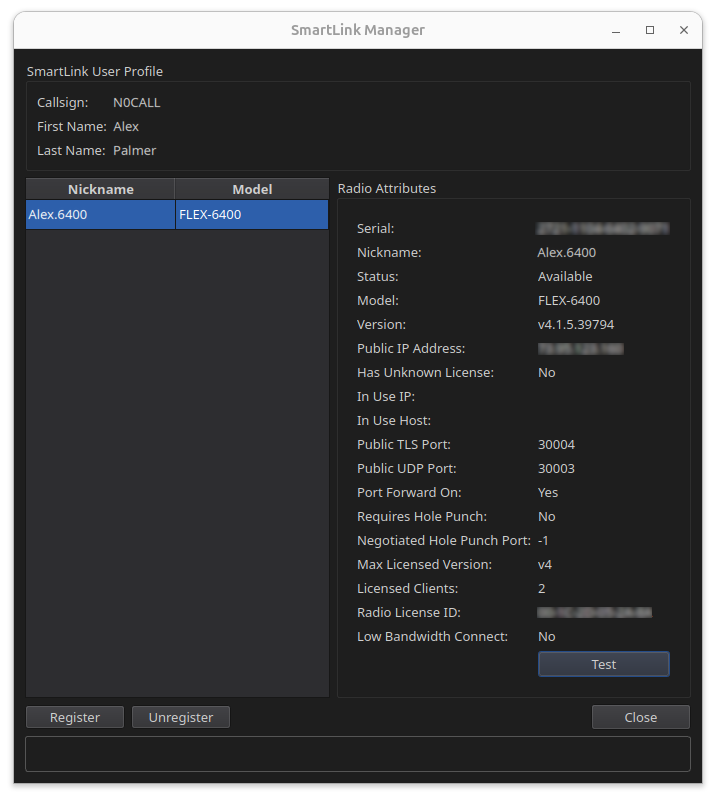
The table on the left lists the radios that are registered to the account, by Nickname and Model. These are the radios that SmartLink can reach, and the same radios that appear in the connect dialog when you sign in there.
Radios on your local network that are not registered do not appear here. To find those, use Register (see below).
Select a row to fill the Radio Attributes panel on the right.
Radio attributes
The panel shows what SmartLink holds for the selected radio. It is read-only. Use it to check a setting, or to see why a remote connection is not working.
| Field | What it tells you |
|---|---|
| Serial | The radio's serial number. |
| Nickname | The name set on the radio. |
| Status | What the radio is doing, for example Available or In Use. |
| Model | For example FLEX-6600M. |
| Version | The SmartSDR version running on the radio. |
| Public IP Address | The address the radio's internet connection presents to SmartLink. |
| Has Unknown License | Yes if SmartLink cannot read the radio's license. |
| In Use IP | The address of the client currently using the radio. Empty if no one is. |
| In Use Host | The host name of that client. |
| Public TLS Port | The external TCP port that reaches the radio's control connection. |
| Public UDP Port | The external UDP port that carries the streams. |
| Port Forward On | Yes if the radio is set for manual port forwarding, No if it relies on UPnP or hole punching. |
| Requires Hole Punch | Yes if the connection has to be negotiated through the router rather than forwarded to it. |
| Negotiated Hole Punch Port | The port agreed for that. -1 means none is in use. |
| Max Licensed Version | The highest SmartSDR version the radio is licensed for, for example v4. |
| Licensed Clients | How many clients may connect at once. |
| Radio License ID | The license identifier held for the radio. |
| Low Bandwidth Connect | Yes if the radio is set to reduce the data rate for slow links. |
Test
Test asks SmartLink to try the ports from the outside and report back. The radio does not have to be connected to RimuSDR for this.
The result is a list of yes/no answers:
| Result | Meaning |
|---|---|
| UPnP TCP Port Working | The router opened the control port automatically. |
| UPnP UDP Port Working | The router opened the streaming port automatically. |
| Forward TCP Port Working | The manually forwarded control port reaches the radio. |
| Forward UDP Port Working | The manually forwarded streaming port reaches the radio. |
| NAT Supports Hole Punch | The router can negotiate a connection without any forwarding. |
A connection needs one working path, not all of them. If every line says No, remote connections will fail, and either the router needs port forwarding or UPnP needs to be turned on.
Register a radio
Registration puts a radio into your SmartLink account so you can reach it over the internet. To prove that the radio is yours, SmartLink asks you to key the radio by hand during the process.
Register from the radio's own network
The radio must be on the same local network as this computer. Registration is sent over the local connection, not over SmartLink. You must also be at the radio, because you have to key it.
If you are connected to this radio, RimuSDR disconnects it to do the registration.
-
Sign in to the SmartLink account that will own the radio.
-
Click Register.
RimuSDR lists the radios it finds on the local network, with serial, nickname and model.
-
Select the radio.
-
Click Register selected radio.
RimuSDR connects to the radio and starts the handshake. The status bar at the bottom of the window reports each stage.
-
Key the radio when the status bar turns orange and asks you to.
Use any transmit input: the CW key, the microphone PTT, the ACC connector or the RCA PTT input. A window also appears to prompt you.
You have 20 seconds. A countdown is shown at the right of the status bar.
-
Wait for Your radio has been registered!
The radio now appears in the radio list, and in the connect dialog when you sign in to this account.
If registration fails
| Message | What to do |
|---|---|
| Radio registration unsuccessful, PTT timeout | The radio was not keyed in time. Try again, and key it as soon as the prompt appears. |
| Radio registration unsuccessful, could not access SmartLink server | The radio cannot reach the SmartLink servers. Check the radio's internet connection and any firewall in front of it. |
| Radio registration unsuccessful, SmartLink refused command | SmartLink rejected the registration. Check that you signed in to the right account. |
| Radio registration unsuccessful, not licensed for this version | The radio is not licensed for the SmartSDR version that SmartLink requires. |
| The radio disconnected before handshake completion | The local connection to the radio dropped part way through. Check the network to the radio and try again. |
Unregister a radio
Unregistering removes the radio from the account and turns off remote access. It does not change anything else about the radio.
The radio must be on your local network
Unregistration is sent over the local connection, the same as registration. Unregister is hidden if the selected radio cannot also be found on the local network. The status bar then says Radio must be on your local network to change settings.
-
Select the radio in the list.
-
Click Unregister.
-
Click Yes to confirm.
-
Key the radio if you are asked to.
-
Wait for Your radio has been unregistered!
Update radio
Update radio edits the port forwarding that the radio reports to SmartLink. Use it when you have set up forwarding on your router by hand, and the radio has to be told which external ports you chose.
The button is shown only for a registered radio that is also on your local network.
- Port forwarding
- Tick Manual port forwarding if your router forwards ports to the radio and you have set those rules up yourself. Leave it clear to let the radio use UPnP or hole punching.
- Public TLS port (TCP)
- The external TCP port. Forward it on the router to port 4994 on the radio. The default is 4994. Any port from 4096 to 65535 is allowed.
- Public UDP port
- The external UDP port. Forward it on the router to port 4993 on the radio. The default is 4993. Any port from 4096 to 65535 is allowed.
The two port fields are only editable while Manual port forwarding is ticked.
Save sends the settings to the radio. The change is made on the radio, not in RimuSDR, so it applies to every client that connects to it.
After you save, use Test to confirm that the ports now reach the radio.
RimuSDR does not change your router
These fields tell the radio which external ports you have forwarded. You still have to create the forwarding rules on the router yourself.
What the status bar shows
The bar at the bottom of the window reports the state of the selected radio, and the progress of a registration or unregistration.
| Message | Meaning |
|---|---|
| Press 'Register' to enable SmartLink... | The radio is not registered, or no radio is selected. |
| Press 'Unregister' to disable SmartLink... | The radio is registered and reachable on the local network. |
| Radio must be on your local network to change settings. | The radio is registered, but is not on this network, so it cannot be changed from here. |
| SmartLink is not available for v1 licensed radios. Please subscribe to SmartSDR+ to unlock this feature. | The radio's license does not cover SmartLink. No action buttons are shown. |
| Radio is connecting to SmartLink servers. Please wait... | The handshake has started. |
| Hardware key radio now... (CW Key, Mic, ACC or RCA PTT) | Shown in orange. Key the radio now. |
| Waiting on server confirmation. Please wait... | The radio was keyed. SmartLink is finishing the change. |
| Your radio has been registered! | Shown in green. |
| Your radio has been unregistered! | Shown in green. |
Failure messages are shown in red, and are listed under If registration fails.
Where the buttons go
The buttons change with what you are doing, so the window rarely shows all of them at once.
| You see | When |
|---|---|
| Login, Signup, Change Pwd | You are signed out. |
| Register | You are signed in, and the selected radio is not registered. Also shown when no radio is selected. |
| Unregister, Update radio | The selected radio is registered and is on your local network. |
| None of them | The selected radio's license does not cover SmartLink, or the radio is registered but is not on this network. |
Close and the profile Change button are always shown.
See also
- SmartLink - connect to a registered radio over the internet.
- Connecting to your radio - all the ways to reach a radio.