SmartLink
SmartLink connects RimuSDR to a FlexRadio over the internet, through FlexRadio's cloud service. Use it when the radio is not on your local network.
SmartLink finds the radio for you, and handles the connection through FlexRadio's servers, so you do not need to know the radio's address or configure port forwarding on the router at the radio's end.
The radio must be registered to a SmartLink account before you can reach it this way. You sign in to that account in RimuSDR, and the radios registered to it appear for you to choose from.
RimuSDR can hold more than one saved account, so an operator with a personal radio and access to a club radio can move between them without signing in again each time.
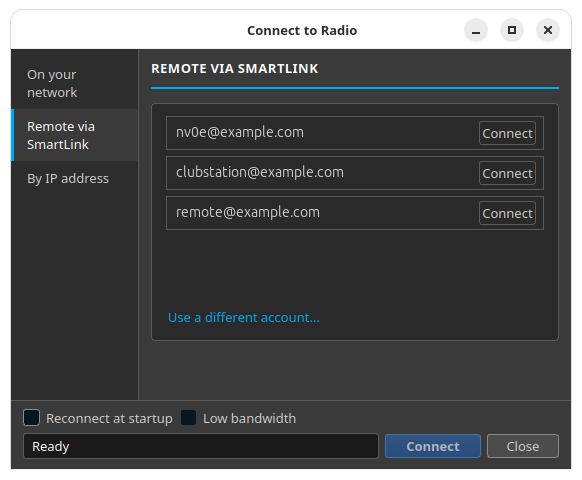
Connect with a saved account
Each account you have saved appears as its own row, with a Connect button.
-
Click Connect on the row for the account you want.
RimuSDR signs in with the sign-in saved for that account. You do not need to enter the password again.
-
Wait for the radio list to appear.
The panel replaces the account rows with the radios registered to that account.
-
Select the radio you want.
-
Click Connect at the bottom of the dialog.
If a saved sign-in has expired, RimuSDR says so and asks you to sign in again. The expired sign-in is removed from the list.
Use a different account
The Use a different account... link at the bottom of the panel signs you in to an account that is not in the list yet.
-
Click Use a different account....
The account rows are replaced by a sign-in form.
-
Enter the email address and password of the SmartLink account.
-
Tick Stay signed in on this computer if you want the account saved.
A saved account gets its own row with a Connect button the next time you open the dialog, so you do not have to type the password again.
-
Click Sign in.
To go back without signing in, click Back to saved accounts.
If you do not have a SmartLink account yet, use Create account... on the same form.