MSHV
MSHV connects to RimuDAX over TCI. One connection carries the audio, frequency, mode and transmit control.
This page is for Windows. We have not tested MSHV with RimuDAX on Linux.
You do not need sound drivers or COM ports
RimuDAX on Windows creates no sound devices and no COM ports. You do not need a virtual audio cable, a virtual COM port tool, or RimuCAT for MSHV.
Transmit is not yet in our test results
Our own test covers receive only. See Test results. The first time you transmit, connect a dummy load to the radio, and make sure that you can stop the transmission from RimuSDR.
Step 1 - RimuSDR
-
Start RimuSDR and connect to the radio.
-
Set the slice to DAX channel
1.
Step 2 - RimuDAX
-
Start RimuDAX. Connect it to the radio and select the RimuSDR station.
There is no mode to select. On Windows, TCI is the only mode.
-
Make sure that the TX button reads Enabled.
Step 3 - MSHV Interface Control
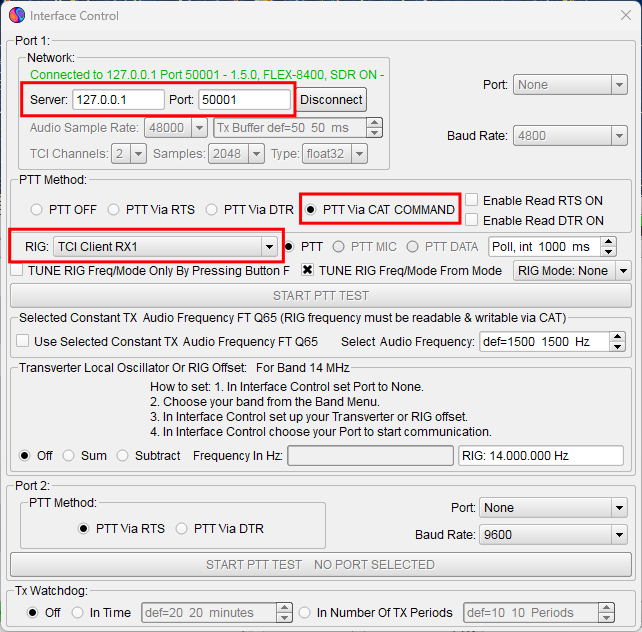
MSHV needs TCI settings in two windows. This is the first window.
-
Open the Interface Control window.
-
Set RIG to TCI Client RX1.
-
Set Server to
127.0.0.1. -
Set Port to
50001. -
Set PTT Method to PTT Via CAT COMMAND.
-
Make sure that the Network section shows
Connectedin green.The button beside Port reads Disconnect while MSHV is connected.
Step 4 - MSHV sound settings
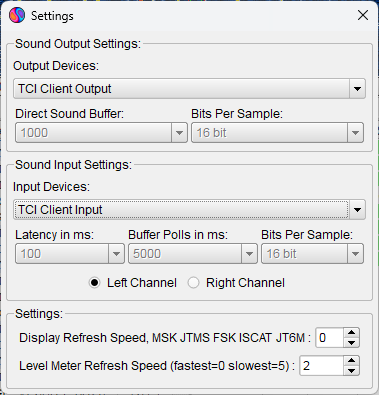
This is the second window. Without these settings, MSHV has no audio.
-
Open the Settings window that has the sound settings.
-
Set Output Devices to TCI Client Output.
-
Set Input Devices to TCI Client Input.
MSHV shows a warning for each selection. In our test, the warnings were about modes other than FT8.
Step 5 - Check that it works
-
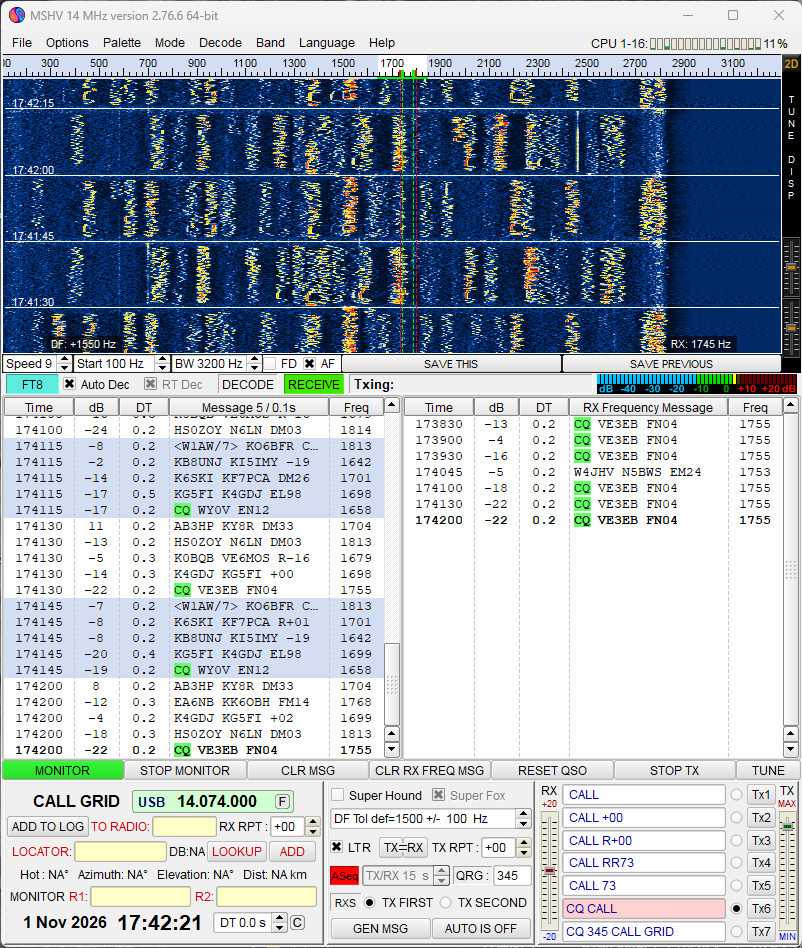
In MSHV, make sure that the frequency and mode of the slice are shown.
-
In MSHV, make sure that signals appear and FT8 decodes.
-
In RimuDAX, make sure that the Clients section shows one client, on port 50001.
The status line then shows
TCI: 1 client on 50001-50008.
Test results
We tested MSHV 2.76.6 64-bit on Windows with a RimuDAX 1.1.18 beta and a FLEX-8400. MSHV showed the frequency and mode, and decoded FT8 on 20 m.
An operator using Windows 11 and a FLEX-8600 reports that MSHV also transmits through RimuDAX. We have not yet run our own transmit tests.
Troubleshooting
- The Network section does not show
Connected - Check that RimuDAX is running and connected to the radio. Check that Server
is
127.0.0.1and Port is50001. - MSHV is connected, but there is no audio
- Check that Output Devices and Input Devices are set to the TCI Client devices. Check that the slice is on DAX channel 1.
For other problems, see Using TCI.